
Configure a Punch Card: Standard
Overview
This article describes the configuration options available within the Standard Punch Card type.
Standard Punch Cards support most common use cases, where a Member must complete a series of purchases in order to earn a prize. The definition of the Punch Card, and the tracking of all punches completed by a Member, are managed by the Loyalty platform.
This article assumes that you have already created the Punch Card (see
The Definition tab of the Punch Card Details screen is used to configure the properties and details of this Punch Card. The tab includes several sections, each of which is described below.
Prize Rules Section
For most Punch Card use cases, the Member earns a Prize when they complete the Punch Card. The Prize can be an Offer
A Punch Card can optionally grant multiple Prizes, either at completion, or along the way toward completion. For example, you could have a Punch Card that requires ten punches to complete, but grant the Member a smaller Prize when the Punch Card is half complete at five punches.
The Prize Rules section of the Definition tab is used to define the Prize itself, as well as the conditions required to earn that Prize.
Create a Prize
To define a Prize:
-
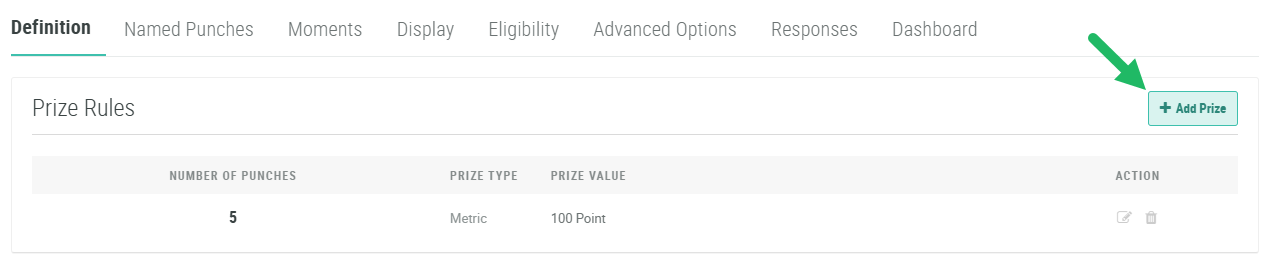
On the Definition tab, within the Prize Rules section, click Add Prize. The Add Prize pop-up window is displayed.
-
Next to Punches Reached, select either:
-
Static: Optionally enter the number of punches required to earn this Prize. Or, leave the field blank to use the default Required Punches needed to complete the Punch Card (see
-
Dynamic: From the drop-down menu, select a Member Attribute where the number of required punches is stored. This feature allows you to dynamically calculate per Member the number of punches required to earn this Prize.
-
-
Optionally, check Has Reward to use another asset as the Prize. From the drop-down menu, select Offer
Note: If you select a Reward as the Prize, the platform treats it as an "Award," meaning no Metrics are deducted from a Member's balance when they win the Prize.
-
Optionally, check Metrics to use a Metric as a Prize. In the text field, enter the number of Metrics the Member will earn. From the drop-down menu, select the desired Metric.
-
Click Add. The platform adds the Prize to the Prize Rules section.
Note: As described above, if you selected Static for Punches Reached, and you left the field blank, the platform uses the default Required Punches. In this scenario, the platform displays an asterisk next to the Number of Punches in the Prize Rules section, to indicate that this Prize uses the default Required Punches.
-
Optionally, repeat the above steps as needed to define additional Prizes for this Punch Card.
Delete a Prize
To delete a Prize:
-
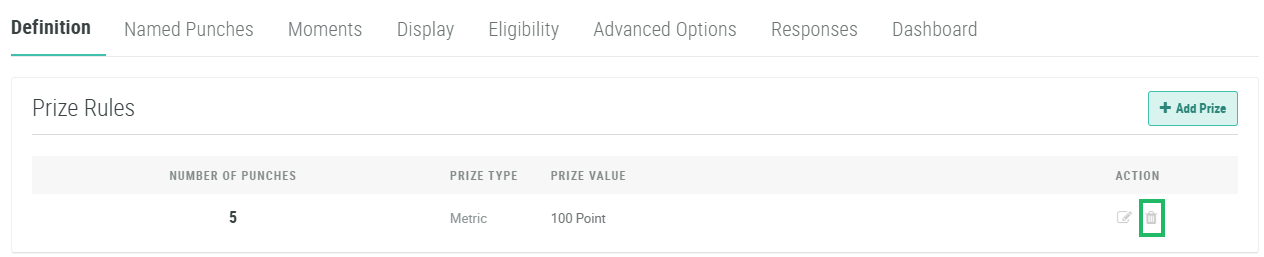
On the Definition tab, within the Prize Rules section, click the Delete icon within the Action column. A confirmation dialog box is displayed; click Confirm.
Edit a Prize
To edit a Prize:
-
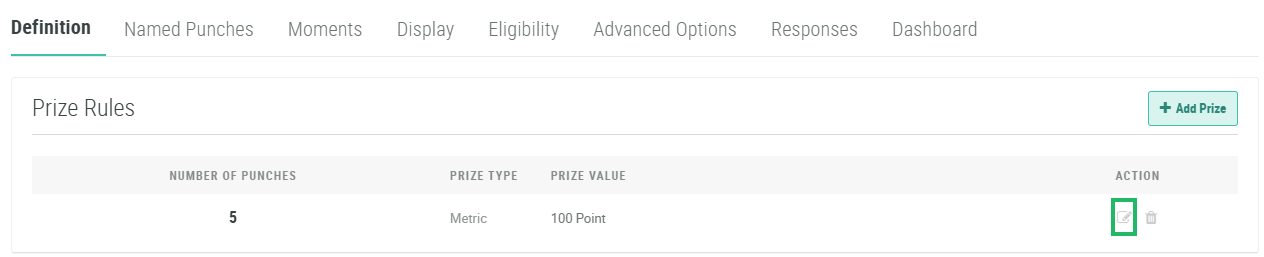
On the Definition tab, within the Prize Rules section, click the Edit icon within the Action column. The Edit Punch Card Prize Definition pop-up window displayed.
-
Make the desired changes to the Prize properties (see Create a Prize above for details on these properties).
-
Click Save.
Punch Limits
The Punch Limits section of the Definition tab is used to configure additional business rules for how often Members can earn punches.
-
Optionally, you can set a maximum number of punches that a Member can earn within a time period, such as "two punches per week." Uncheck No Limit, then in the Punch Rate Limit per Card field, enter the maximum number of allowed punches. From the Per drop-down menu, select the time period. If you prefer not to set a limit, check No Limit.
-
To enforce the above Punch Card limit across all Punch Cards within a Punch Card Category, select the desired Punch Card Category from the Limit Across Same Category drop-down menu.
-
Optionally, you can require the Member to continually earn new punches before a specified duration has elapsed, such as “at least once a month.” Next to Require a punch at least every, enter the minimum required number, then select a time period from the drop-down menu.
-
Click Save.
Extra JSON
The Extra JSON section allows you to extend the standard Loyalty Punch Card API to include additional metadata relevant for external processing. The platform supports two methods for providing extra JSON in a Punch Card: enter it manually, or copy it in from the JSON Template.
Enter Custom JSON
To manually enter custom JSON code:
-
Click the Configure JSON icon. The Edit Punch Card Type pop-up window is displayed.

-
Enter your custom JSON code.
-
Click Save.
Insert JSON Template
The Loyalty platform supports a reusable JSON Template for use in Punch Cards. This feature is intended for use by clients who have standard extended JSON that they use across multiple Punch Cards. Instead of manually entering the JSON into every Punch Card, you can define the JSON once within the Template, then simply insert it into every Punch Card.
The JSON Template is defined within a Program Setting. Before using this feature in a Punch Card, you must define the JSON within this Program Setting. See Program Setting Category - Extra JSON for more information on this process.
To insert the JSON Template into a Punch Card:
-
Click the Generate JSON Template icon.

-
The platform inserts the JSON Template into the Extra JSON section. Optionally, you can edit this JSON code as described above.
Effectivity Periods
Punch Cards are governed by an overall Effectivity Period that controls when, and for long, the Punch Card is visible to Members on your website or app.
In addition to the overall Effectivity Period for the Punch Card, the platform allows you to set more granular schedules that control when a Member can respond to the Punch Card (called the Response Period), and when a Member can use the Punch Card (called the Usage Period).
See
